Enhance old videos with AI: sharper and bigger
A clip from fifteen years ago often looks grainy on a big screen. In Ohhi you can have AI make a video like that sharper and bigger. What it does, what it costs and how to use it.
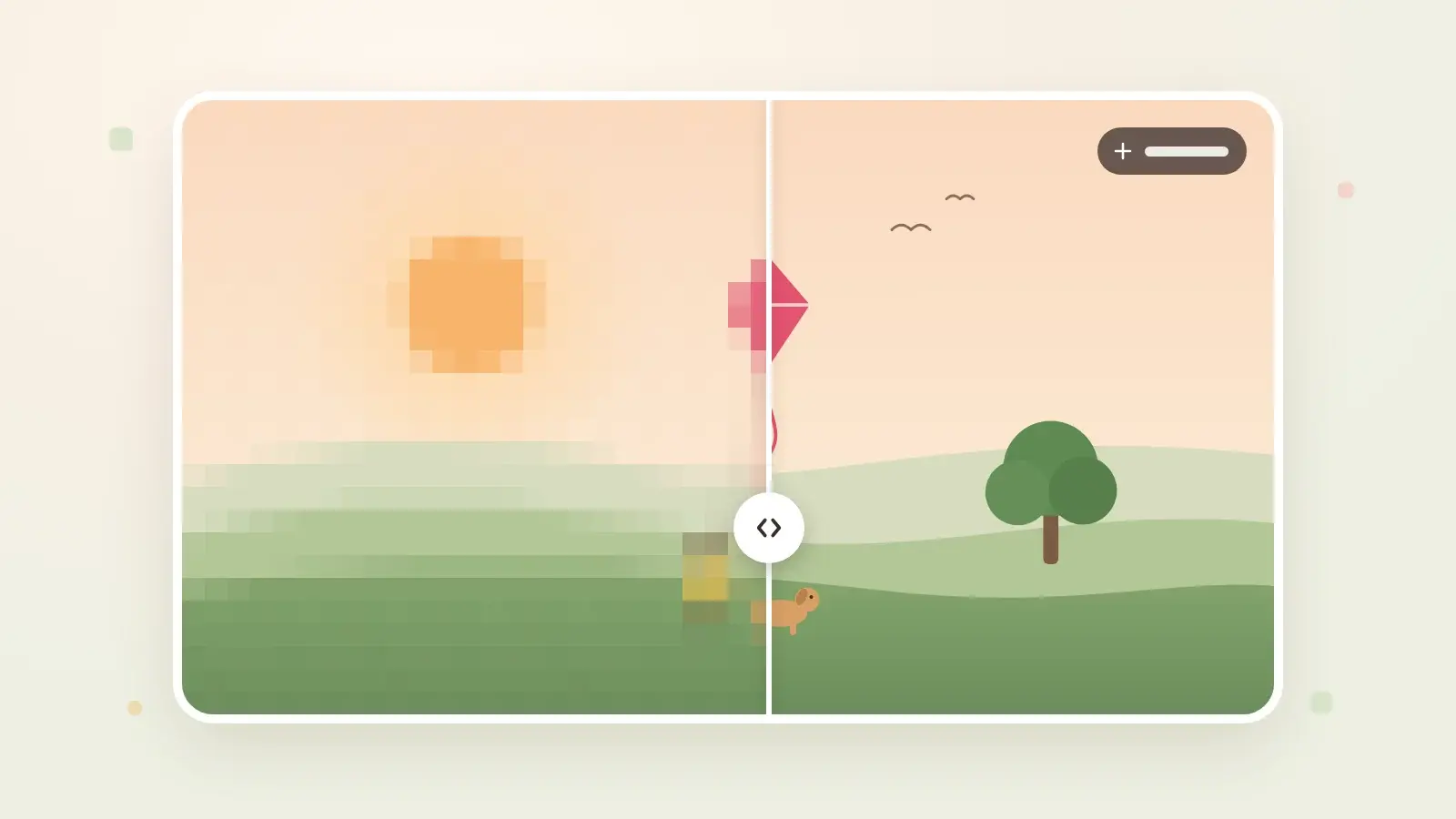
Illustrative image · the original on the left, the same video enhanced with AI on the right
Your daughter's first steps, grandpa giving a speech at a birthday, the dog as a puppy. Many of those clips were filmed on the phone you had back then, or come from a Facebook export, and are 480 pixels tall or less. On a phone that's fine, on a laptop or TV you mostly see blocks. With Enhance with AI, also known as upscaling, you can make a video like that sharper and bigger in Ohhi.
What the AI does
An AI model for video restoration looks at the video frame by frame, together with the frames before and after. It removes noise and compression blocks and fills in detail that fits what's in the picture, such as edges, hair and the texture of clothing. Afterwards the video is two, three or four times as big, up to 4K. The result is a new version; your original video is kept.
AI can't bring back what was never recorded. What it fills in is an estimate, and with faces or text it can differ from what was really there. That's why an enhanced video always carries the label Enhanced with AI, and one tap puts the original next to it.
Which videos gain the most
It works best on videos with few pixels: clips from an old phone or an early digital camera, videos you once got through WhatsApp, and videos from a Facebook export, which often come in lower quality. How to get that export is in download your photos and videos from Facebook. If a video is already Full HD (1080 pixels tall) or more, Ohhi doesn't offer the enhancement, because there is little to gain.
How to use it
- Open the video in Ohhi. Next to it you'll find Enhance with AI, with the lowest price next to it.
- Tap Enhance and choose under Target quality how much bigger the video gets. You see the price straight away, including VAT, and roughly how long it takes.
- If you're unsure about the result, pick Preview (10s) first. A ten-second part gets enhanced, which you pay for separately.
- Tap Pay and check out through Mollie. Afterwards you're back at your video and can see how far along it is.
- When the video is ready, you get an email. Open the video and the enhanced version plays. With Enhanced with AI · Compare you slide between the original and the new version.
What it costs
You pay once per video and don't need a subscription. The price depends on how long the video is and how much bigger it gets, and you see it before you pay. If the enhancement fails, you get your money back automatically. The enhanced version is a new file and counts towards your storage; if your storage is full, you can only check out once there's room again. Enhance with AI is available from age 18.
What happens to your video
To enhance it, your video goes to a GPU server in the EU that we start for your job and delete afterwards, with everything on it. The video is only used to make your enhanced version, and we don't train AI on it; why not is explained in why we never use your photos to train AI. Family and friends you share the video with see the enhanced version too, with the same label.
If you don't have Ohhi yet, you can create a free account, upload your old videos and then choose which ones to enhance.