Collect wedding photos with a QR code
With a collection link, your guests send in their photos through a QR code on the table. They need no account and no app, and you decide what goes into the album.
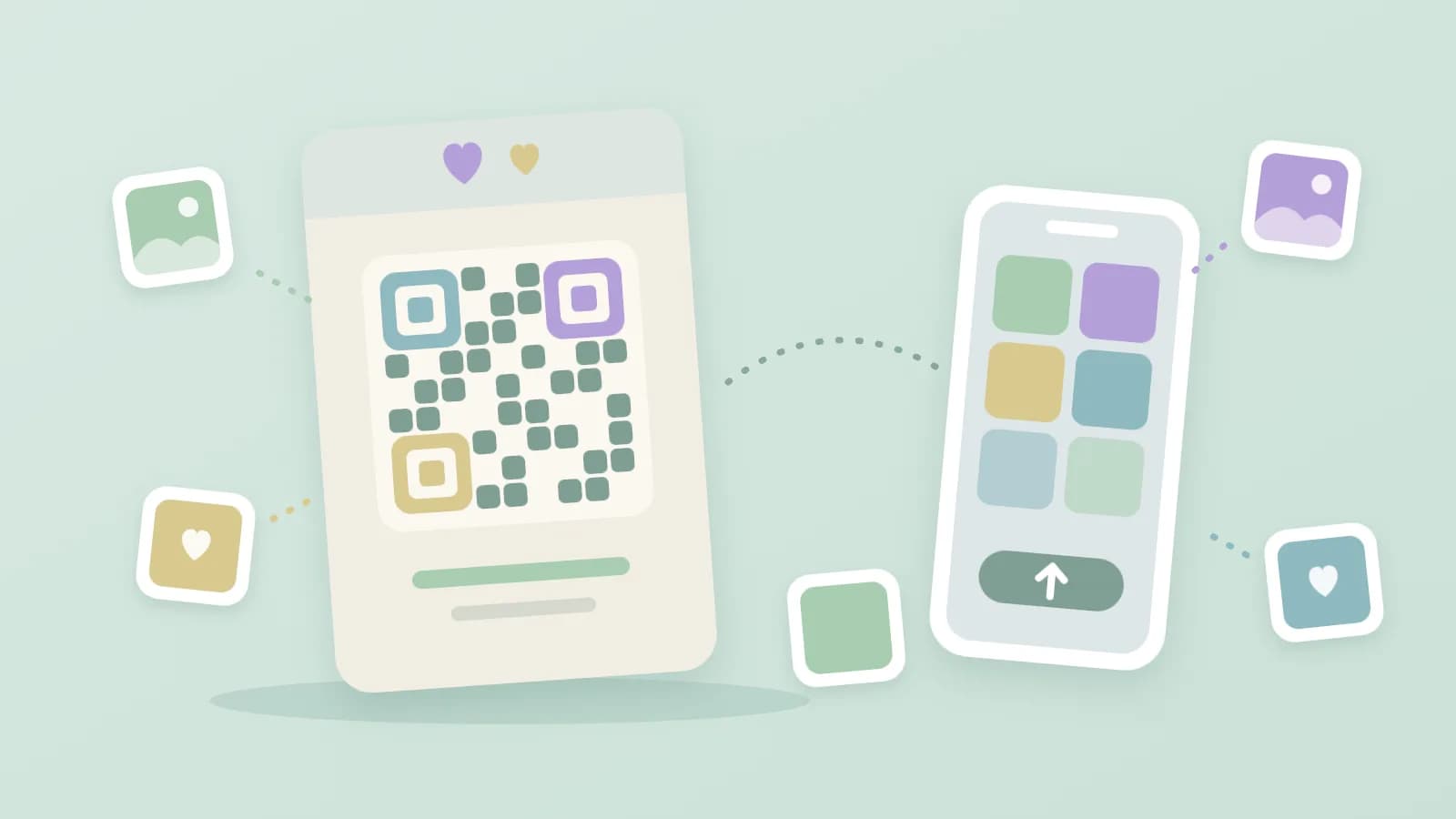
For illustration · a table card with a QR code and the photos of guests
At a wedding the photographer takes the official photos and the guests take the rest: the ceremony from the third row, the dance floor at half past eleven, grandma by the cake. Afterwards those photos sit on dozens of phones. Some end up in a group chat, some were going to be forwarded by someone, and the rest you never get to see.
That's why you can now collect photos in Ohhi through a link or QR code. Guests scan the code, choose their photos and send them in. They need no account and no app for it, and everything lands in your own album.
How to set it up
Create a new folder and choose Guest album as its type. You can also convert an existing folder, for example the album for the wedding. In the guest album you then create the upload link: you give the link a title and an end date and decide whether guests may send in videos too. After that you have a link to share, a QR code to download and an A6 table card you can print.
What your guests do
A guest scans the QR code or opens the link and arrives at a single screen in the browser. Filling in a name is allowed but not required. The guest then chooses photos, and videos if you allowed them, and sends them in. The files go straight to your album and not first through a group chat's compression.
Guests don't see what others have sent in, nor what is already in the album. The link only gives the right to send something in. If you want to show the album afterwards, you share it yourself, like any other album.
You decide what goes into the album
Submissions appear at the top of your guest album under New from guests, grouped per guest, with 'Sent in by' and the name alongside. You see them straight away, as do the adults you share the folder with. They are not yet on a public link of the album at that point. That only happens once you keep them: first delete what you don't want, then choose Keep all. That moves the photos into the album itself.
Face recognition does not run on guest submissions until you keep them, and even then only if you have switched face recognition on yourself.
We ask guests for nothing but a name, and that is optional. No email address or account is needed. A guest who wants a photo removed asks you, as the owner of the album. The photos are stored on servers in Europe, there are no ads between them and we don't train AI on them.
The limits
- The link always has an end date, at most 90 days ahead.
- A photo can be up to 50 MB, a video up to 1 GB.
- One guest can send in 200 files in one go. Each link has room for 1000 files.
- Submissions count towards your storage.
Collecting photos is part of the paid plans, from €6 a year. Only the person who collects needs that plan; guests pay nothing.
Tips for the day itself
- Print the table card and put one on every table. Test the QR code beforehand with your own phone.
- Set the end date a week or two after the wedding, so guests can still send in photos from home.
- Ask the master of ceremonies or one of the speakers to mention the card. Otherwise it goes unnoticed among the flowers and the menus.
- Send the link round once more afterwards, for example with the thank-you note.
For other occasions too
The wedding is the best-known example, but the same works for a birthday, a baby shower, a farewell or funeral and a school trip. You can create an account for free; collecting photos is possible as soon as you have a paid plan.